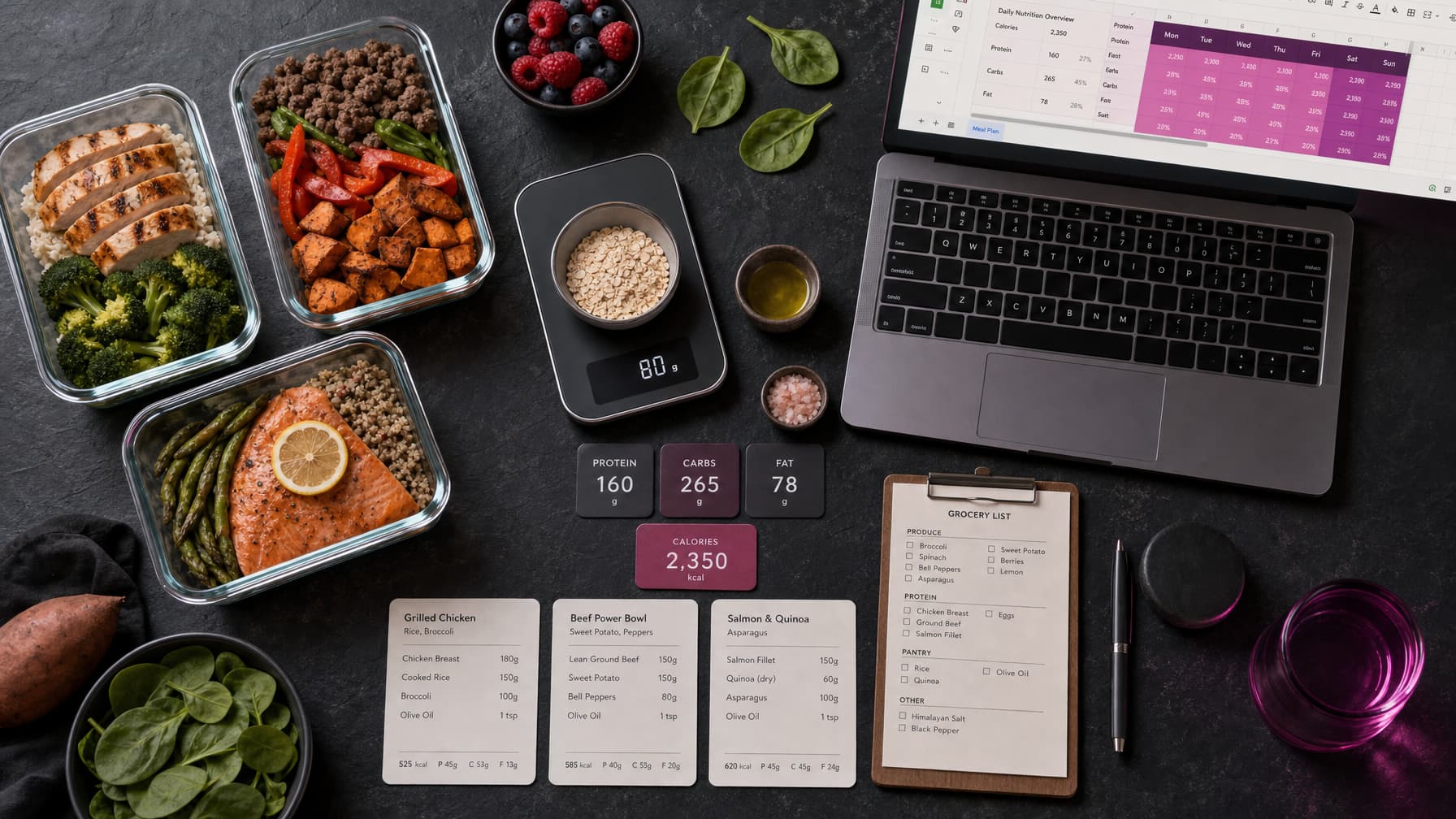
Build a macro calculator and TDEE spreadsheet in Google Sheets: Mifflin-St Jeor BMR, activity multipliers, goal adjustments and protein, fat and carb targets, with copy-ready formulas and a worked example.
A macro calculator in Google Sheets lets you set a client's calorie and macro targets in seconds and recalculate them when their weight changes. You enter weight, height, age, sex, activity level and goal. The sheet returns BMR, TDEE, a calorie target and grams of protein, fat and carbohydrate.
This guide shows how to build one. Every formula is ready to copy, and a worked example checks the result.
A calculator gives you a starting estimate, not an exact answer. Real energy needs vary between people. Use the client's weekly weight trend to adjust targets after two to four weeks.
Step 1: Set Up the Input Cells
Create a tab called Calculator and add these labels in column A and inputs in column B:
| Cell | Label | Example input |
|---|---|---|
| B2 | Sex | Female |
| B3 | Weight (kg) | 70 |
| B4 | Height (cm) | 165 |
| B5 | Age | 35 |
| B6 | Activity level | Moderately active |
| B7 | Goal | Fat loss |
| B8 | Protein (g per kg) | 1.8 |
| B9 | Fat (% of calories) | 25% |
Use Data > Data validation to make B2, B6 and B7 dropdowns. Dropdowns stop typing errors that would break the lookups.
Working in pounds and inches? Add two helper cells and point the formulas at them:
Weight in kg:  =B3*0.453592
Height in cm:  =B4*2.54
Step 2: Calculate BMR With Mifflin-St Jeor
Basal metabolic rate (BMR) estimates the energy the body uses at rest. The Mifflin-St Jeor equation is a common choice for the general population:
- Men: 10 × weight (kg) + 6.25 × height (cm) − 5 × age + 5
- Women: 10 × weight (kg) + 6.25 × height (cm) − 5 × age − 161
In B11, one formula handles both:
=10*B3+6.25*B4-5*B5+IF(B2="Male",5,-161)
Alternative for lean, well-trained clients: if you have a reliable body fat estimate, the Katch-McArdle equation uses lean body mass instead of total weight. With body fat percentage in B10:
=370+21.6*(B3*(1-B10))
Pick one equation and use it for every client, so your adjustments stay consistent.
Step 3: Calculate TDEE With Activity Multipliers
Total daily energy expenditure (TDEE) is BMR multiplied by an activity factor. Create a tab called Lists with this table in A2:B6:
| Activity level | Multiplier |
|---|---|
| Sedentary | 1.2 |
| Lightly active | 1.375 |
| Moderately active | 1.55 |
| Very active | 1.725 |
| Extremely active | 1.9 |
In B12, look up the multiplier and calculate TDEE:
=B11*XLOOKUP(B6,Lists!A2:A6,Lists!B2:B6)
If your version of Sheets does not support XLOOKUP, use:
=B11*VLOOKUP(B6,Lists!A2:B6,2,FALSE)
Most clients overestimate their activity. If a client has a desk job and trains three or four times a week, start with Lightly active or Moderately active, then adjust from real data.
Step 4: Apply the Goal Adjustment
Add a goal table in Lists!D2:E4. The percentages below are example starting points. Set your own based on your coaching method and the client's situation.
| Goal | Adjustment |
|---|---|
| Fat loss | -20% |
| Maintenance | 0% |
| Muscle gain | 10% |
In B13, calculate the calorie target and round it to the nearest 5 kcal:
=MROUND(B12*(1+XLOOKUP(B7,Lists!D2:D4,Lists!E2:E4)),5)
Step 5: Split Calories Into Macros
Use the standard energy values: protein and carbohydrate provide 4 kcal per gram, fat provides 9 kcal per gram.
Protein (grams), in B14, based on bodyweight:
=ROUND(B3*B8,0)
Many coaches use 1.6–2.2 g per kg for clients who strength train. Set the value in B8 per client.
Fat (grams), in B15, as a percentage of calories:
=ROUND(B13*B9/9,0)
Carbohydrate (grams), in B16, from the calories that remain:
=ROUND((B13-B14*4-B15*9)/4,0)
Check total, in B17, to confirm the macros add up:
=B14*4+B15*9+B16*4
The check total will differ from the target by a few calories because of rounding. A larger gap means a formula error.
Add a guard so a very high protein or fat setting cannot produce negative carbs:
=IF(B16<0,"Reduce protein or fat","OK")
Worked Example
A 35-year-old woman, 70 kg, 165 cm, moderately active, with a fat loss goal:
| Step | Calculation | Result |
|---|---|---|
| BMR | 10 × 70 + 6.25 × 165 − 5 × 35 − 161 | 1,395 kcal |
| TDEE | 1,395.25 × 1.55 | 2,163 kcal |
| Target | 2,162.6 × 0.8, rounded to 5 | 1,730 kcal |
| Protein | 70 × 1.8 | 126 g (504 kcal) |
| Fat | 1,730 × 25% ÷ 9 | 48 g (432 kcal) |
| Carbohydrate | (1,730 − 504 − 432) ÷ 4 = 198.5, rounded | 199 g (796 kcal) |
Check: 504 + 432 + 796 = 1,732 kcal, within 2 kcal of the target because of rounding. The sheet should return the same numbers. If it does not, check the cell references first.
Step 6: Add Training Day and Rest Day Targets
Some coaches give more carbohydrate on training days. Keep weekly calories the same and move carbs between days. With training days per week in B19 and a carb shift in grams in B20:
Training day carbs:  =B16+B20
Rest day carbs:      =B16-ROUND(B20*B19/(7-B19),0)
For example, with 4 training days and a 30 g shift, training days get 229 g and rest days get 159 g. The weekly carb total stays the same.
Step 7: Adjust From Real Data
The calculator sets the starting point. The weekly check-in tells you whether it is right. After two to four weeks:
- Compare the client's average weekly bodyweight with the previous weeks.
- Check adherence. If the client hit their targets on only three days a week, fix adherence before changing numbers.
- If the trend does not match the goal, change calories in small steps, then review again.
Record each change in a log tab with the date, old target, new target and reason. The online coaching check-in template shows how to track average weight and adherence each week.
From Macro Targets to a Meal Plan
Targets are only useful if the client can hit them. The next step is a meal plan that adds up food quantities per meal and per day. The meal plan template guide walks through a food database lookup and meal totals in Google Sheets.
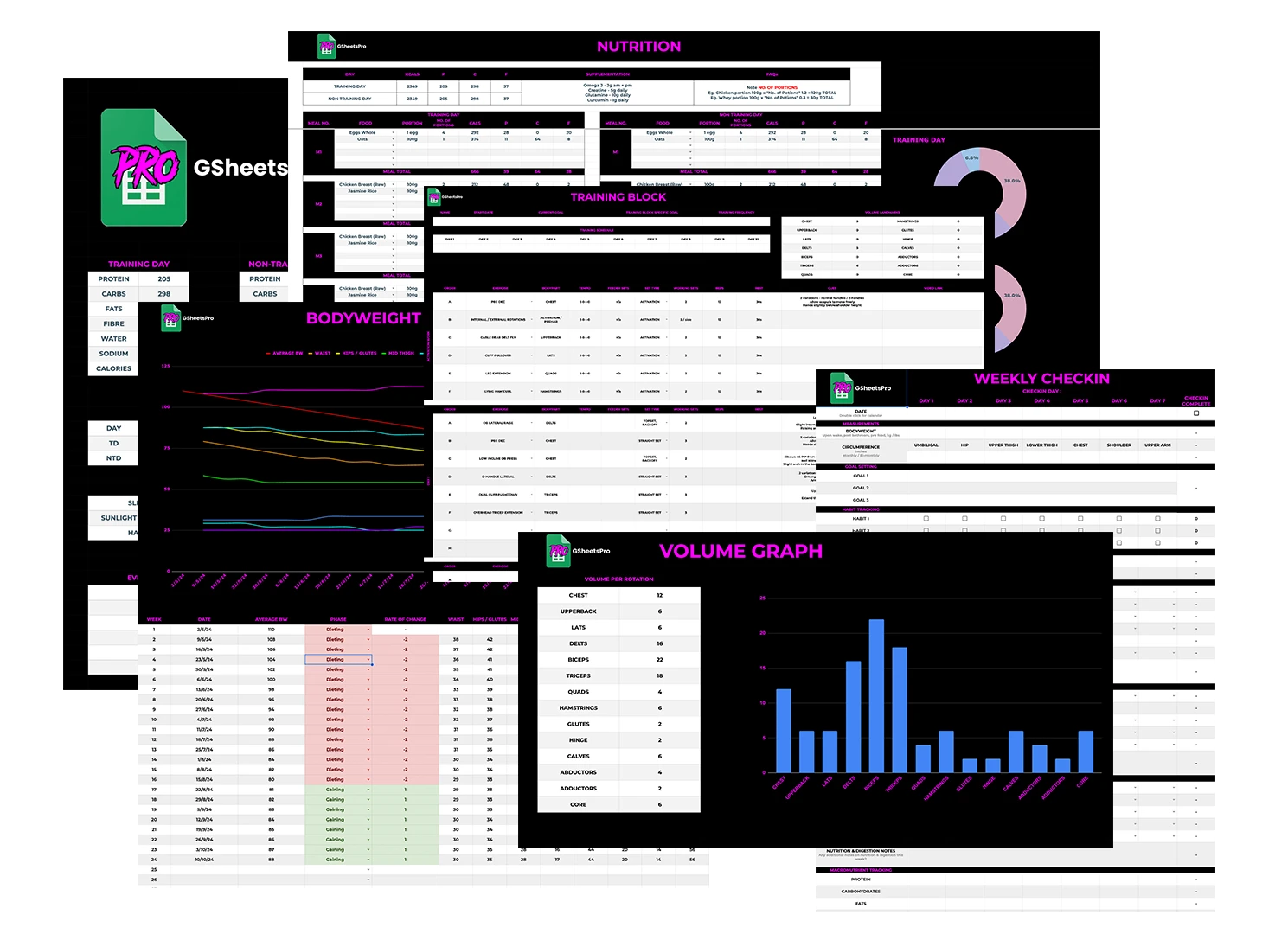
GSheetsPro includes macro and meal plan templates with per-meal and per-day calculations and an editable 200+ food database, as part of a £199 one-time system. See what is included on the pricing page.
Frequently Asked Questions
What is the best formula for a TDEE spreadsheet?
Mifflin-St Jeor multiplied by an activity factor is a common, simple starting point. Katch-McArdle is an option when you have a reliable body fat estimate. Both give estimates, so adjust from real weight trends.
How do I make a macro calculator in Google Sheets?
Add input cells for sex, weight, height, age, activity and goal. Calculate BMR with Mifflin-St Jeor, multiply by an activity factor for TDEE, apply a goal adjustment, then set protein by bodyweight, fat as a percentage of calories and carbs from the remainder.
How much protein should the calculator use?
Many coaches use 1.6–2.2 g per kg of bodyweight for clients who strength train. Choose a value that suits the client and their goal, and keep it in an editable cell.
Why do my macros not add up to the calorie target exactly?
Rounding each macro to whole grams creates a small difference. A gap of a few calories is normal. A large gap means a formula references the wrong cell.
Can clients use the calculator themselves?
They can, but most coaches keep the calculator coach-side and share only the final targets. This prevents clients from changing inputs without a review.