Build a client tracking spreadsheet for personal training in Google Sheets: roster columns, session and package balances, payments, progress tracking and renewal flags, with formulas you can copy.
A client tracking spreadsheet answers three questions every day: who am I training, what do they owe or have left, and who needs attention. Personal trainers often keep this information across a diary, a banking app and message threads. A single Google Sheet puts it in one place.
This guide shows how to build a client tracking spreadsheet for personal trainers, whether you train clients in person, online or both. It covers the tabs, the columns, the formulas and a weekly routine.
The Four Tabs You Need
Keep the tracker in one coach-only file with four tabs:
| Tab | Purpose | One row per |
|---|---|---|
| Roster | Every client and their current status | Client |
| Sessions | Every session delivered | Session |
| Payments | Every payment received | Payment |
| Progress | Key measurements over time | Measurement date |
Separate tabs keep each record simple. The Roster tab then uses formulas to summarise the others, so you never type the same data twice.
Use the same client name spelling in every tab. A small typo breaks every lookup. Data validation on the name columns (a dropdown from the Roster list) prevents this.
Tab 1: The Client Roster
The roster is your daily view. Add these columns:
| Column | Field | Notes |
|---|---|---|
| A | Client name | Dropdown source for other tabs |
| B | Status | Active, Paused, Ended |
| C | Service | In person, Online, Hybrid |
| D | Package | For example 10 sessions, Monthly online |
| E | Start date | |
| F | End or renewal date | |
| G | Sessions bought | For session packs |
| H | Sessions used | Formula |
| I | Sessions left | Formula |
| J | Last session or check-in | Formula |
| K | Total paid | Formula |
| L | Goal | Short text |
| M | Next action | Short text |
| N | Flag | Formula |
Freeze row 1 and column A so the headers and names stay visible when you scroll.
Tab 2: Sessions Log
Log each session as one row: Date, Client, Session type, Notes. For online clients, log each check-in review here too, with a type of "Check-in".
In the Roster, calculate sessions used, sessions left and the last contact date:
Sessions used (H2):  =COUNTIFS(Sessions!B:B,A2,Sessions!C:C,"<>Check-in")
Sessions left (I2):  =IF(G2="","",G2-H2)
Last contact (J2):   =IFERROR(MAXIFS(Sessions!A:A,Sessions!B:B,A2),"")
Format J as a date. If MAXIFS returns 0 for a client with no sessions, the date shows as 30/12/1899. Wrap it to hide that:
=IF(COUNTIF(Sessions!B:B,A2)=0,"",MAXIFS(Sessions!A:A,Sessions!B:B,A2))
Tab 3: Payments
Log each payment as one row: Date, Client, Amount, Method, What it covers. Then total each client's payments in the Roster:
Total paid (K2): =SUMIFS(Payments!C:C,Payments!B:B,A2)
For a monthly revenue view, add a summary table on a separate tab. With the first day of the month in A2:
=SUMIFS(Payments!C:C,Payments!A:A,">="&A2,Payments!A:A,"<"&EDATE(A2,1))
This shows cash received per month. It is not accounting software, so keep your bookkeeping and tax records in the tools your accountant uses.
Tab 4: Progress
Log measurements as rows: Date, Client, Bodyweight, Waist, Key lift, Notes. One row per client per measurement date keeps the data easy to chart.
To show a client's latest bodyweight in the Roster:
=IFERROR(INDEX(SORT(FILTER(Progress!A:C,Progress!B:B=A2),1,FALSE),1,3),"")
This filters the client's rows, sorts them newest first and returns the bodyweight from the top row.
For a quick trend in the Roster, a sparkline shows the last entries at a glance:
=IFERROR(SPARKLINE(FILTER(Progress!C:C,Progress!B:B=A2)),"")
Keep detailed progress, programmes and check-ins in each client's own file. The coach tracker only needs the summary.
Flags: Who Needs Attention Today
Combine the rules you care about into one Flag column (N2). This example flags low session balances, renewals due in 14 days and clients with no contact for 10 days:
=IF(B2<>"Active","",
 IF(AND(I2<>"",I2<=2),"Low sessions",
 IF(AND(F2<>"",F2-TODAY()<=14),"Renewal due",
 IF(AND(J2<>"",TODAY()-J2>10),"No contact",""))))
Add conditional formatting to column N so any non-empty value turns amber. Then filter the Roster by the Flag column to get today's action list.
Adjust the thresholds to your business. A trainer who sees clients twice a week may use 5 days for "No contact". An online coach with weekly check-ins may use 8.
A Weekly Tracking Routine
- Daily: log sessions and payments as they happen. It takes seconds per entry.
- Weekly: filter the Flag column. Contact clients with low sessions or renewals due. Review anyone marked "No contact".
- Monthly: check the revenue summary, count active clients and note how many renewed or ended.
- When a client ends: set Status to Ended rather than deleting the row. Your history stays intact for retention analysis.
Example: A Hybrid Trainer's Roster
Consider a trainer with 12 in-person clients on 10-session packs and 8 online clients on monthly plans. Both groups sit in the same Roster:
- In-person clients have a value in Sessions bought, so Sessions left counts down as sessions are logged. The "Low sessions" flag prompts a renewal conversation before the pack runs out.
- Online clients leave Sessions bought blank, so the session columns stay empty. Their End or renewal date drives the "Renewal due" flag, and weekly check-in reviews logged as "Check-in" drive the "No contact" flag.
Filter by Service to review each group separately, or sort by Flag to see everyone who needs action first. One file covers both ways of working.
Privacy and Sharing
This tracker holds personal and payment data. Keep it coach-only. Share only a client's own file with that client, never the tracker. Hidden tabs and protected ranges do not stop someone with access from seeing the data.
If you store health information, such as injuries or medical conditions, check your obligations under UK GDPR. Collect only what you need, and keep it in a secure Google account with two-step verification turned on.
Frequently Asked Questions
What should a personal trainer's client tracking spreadsheet include?
A roster with status, package, dates and next action, plus separate logs for sessions, payments and progress. Formulas on the roster summarise the logs.
Should I use one spreadsheet for all clients?
Use one coach-only tracker for the summary and a separate file per client for their programme, nutrition and check-ins. This keeps sharing permissions simple.
How do I track session packs in Google Sheets?
Enter the sessions bought on the roster, log each session in a Sessions tab, and use COUNTIFS to count sessions used. Subtract to show sessions left.
Can Google Sheets track client payments?
Yes, as a simple payments log and monthly total. Use proper accounting software or your accountant's tools for tax and bookkeeping.
Is a spreadsheet enough, or do I need software?
A spreadsheet works well for most solo trainers. Software is worth it if you need online booking, automated payments or a client app. See Google Sheets vs coaching apps for when each fits.
Pre-Built Client Files
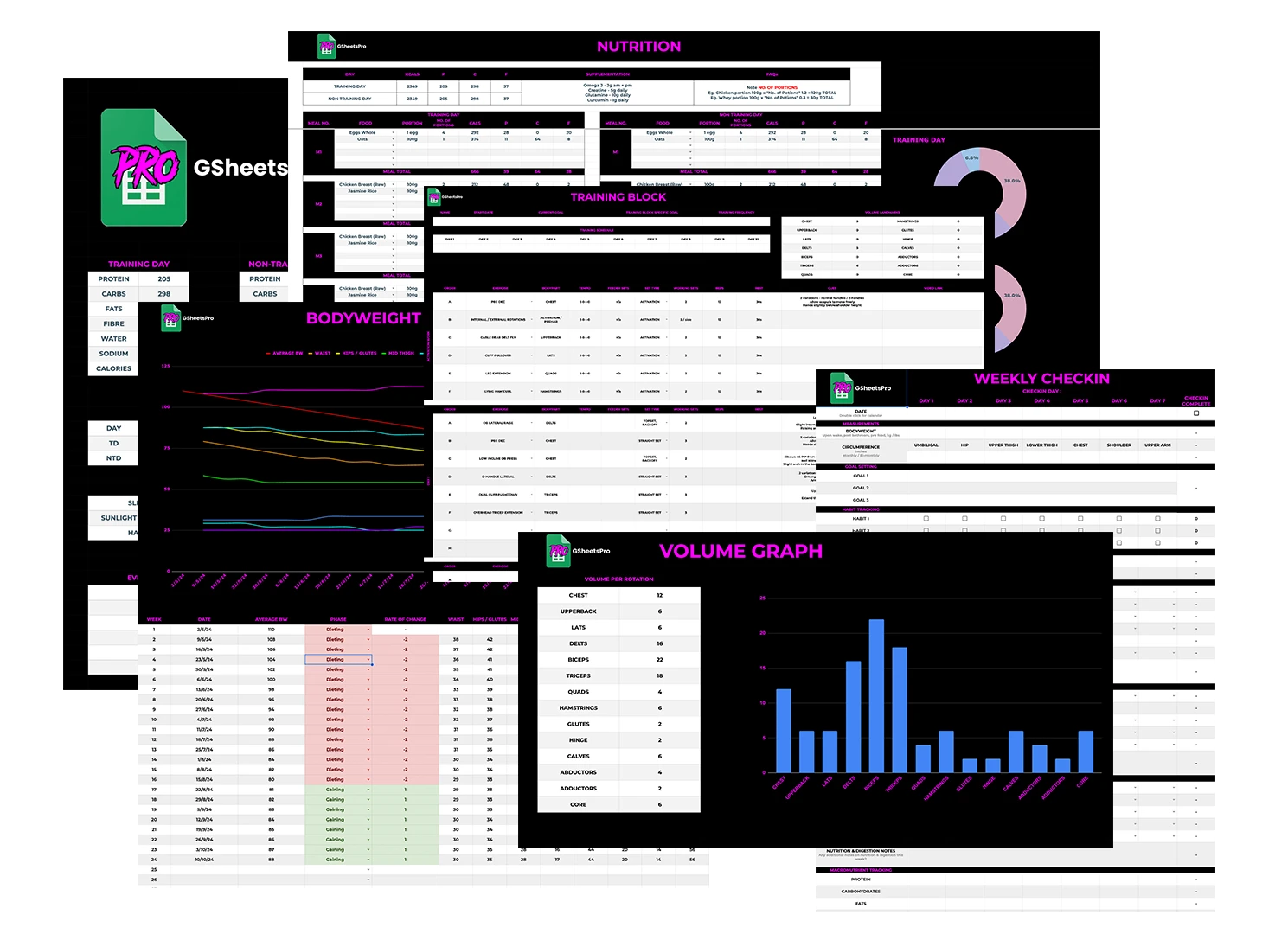
This tracker covers the business side. For the client side, GSheetsPro includes a client management dashboard, training plans, meal plans, check-in sheets and a weekly progress tracker in Google Sheets, for £199 one-time. See the full system on the pricing page.
Related guides: how to manage coaching clients in Google Sheets, online coaching check-in template and 5 Google Sheets templates for fitness coaches.