Build a weekly check-in template for online coaching clients in Google Sheets: the questions to ask, a Google Form setup, review formulas, red-flag rules and a 10-minute review routine.
A weekly check-in is where online coaching happens. The client reports what they did, you review the data, and you adjust the plan. If check-ins arrive as long messages in different apps, each one takes longer to review and trends are hard to see.
A check-in template fixes this. Every client answers the same questions in the same order, and the answers land in a Google Sheet that calculates trends for you. This guide gives you the questions, two ways to collect them, the formulas and a review routine.
What a Good Weekly Check-In Collects
Keep the check-in short enough that clients complete it every week. Ten to fifteen questions is a practical limit. Group them into four areas:
| Area | Question | Answer type |
|---|---|---|
| Body data | Average morning bodyweight this week | Number (kg or lb) |
| Body data | Waist measurement | Number (cm or in) |
| Body data | Progress photos uploaded? | Yes / No |
| Adherence | Training sessions completed / planned | Number |
| Adherence | Days you hit your calorie target | 0–7 |
| Adherence | Days you hit your protein target | 0–7 |
| Adherence | Average daily steps | Number |
| Recovery | Sleep quality | 1–10 |
| Recovery | Energy | 1–10 |
| Recovery | Stress | 1–10 |
| Recovery | Hunger | 1–10 |
| Comments | Biggest win this week | Short text |
| Comments | Biggest challenge this week | Short text |
| Comments | Anything you want me to change? | Short text |
Use scales where you want a trend and text where you want context. Ask for the average bodyweight rather than a single weigh-in, because daily weight changes with water, food and sleep.
For clients in contest prep, add questions for training performance, digestion and cycle phase. For lifestyle clients, a shorter form often gets better completion.
Option 1: A Weekly Check-In Form (Google Forms)
A Google Form gives clients a simple mobile form and puts every answer into a sheet.
- Create a Google Form with the questions above. Use Short answer with number validation for bodyweight and steps, and Linear scale for 1–10 scores.
- Add a first question for the client's name or email so you can filter responses. Or collect email addresses in the form settings.
- Open Responses and click Link to Sheets. Each submission becomes a new row with a timestamp.
- Send the same form link to every client each week.
This is the fastest setup for a coach with many clients. The limitation is that all clients' answers go into one response sheet, so do not share that sheet with clients.
Option 2: A Check-In Tab in Each Client's Sheet
The alternative is a check-in tab inside each client's own Google Sheet. Each row is one week. The client types their answers directly into the coloured input cells.
| Week | Date | Avg weight | Waist | Sessions | Calorie days | Protein days | Steps | Sleep | Energy | Stress | Win | Challenge |
|---|
This keeps the full history next to the client's plan and gives them a record of their own progress. It works well when you already share a file per client. Protect the formula columns so a client cannot overwrite them by mistake.
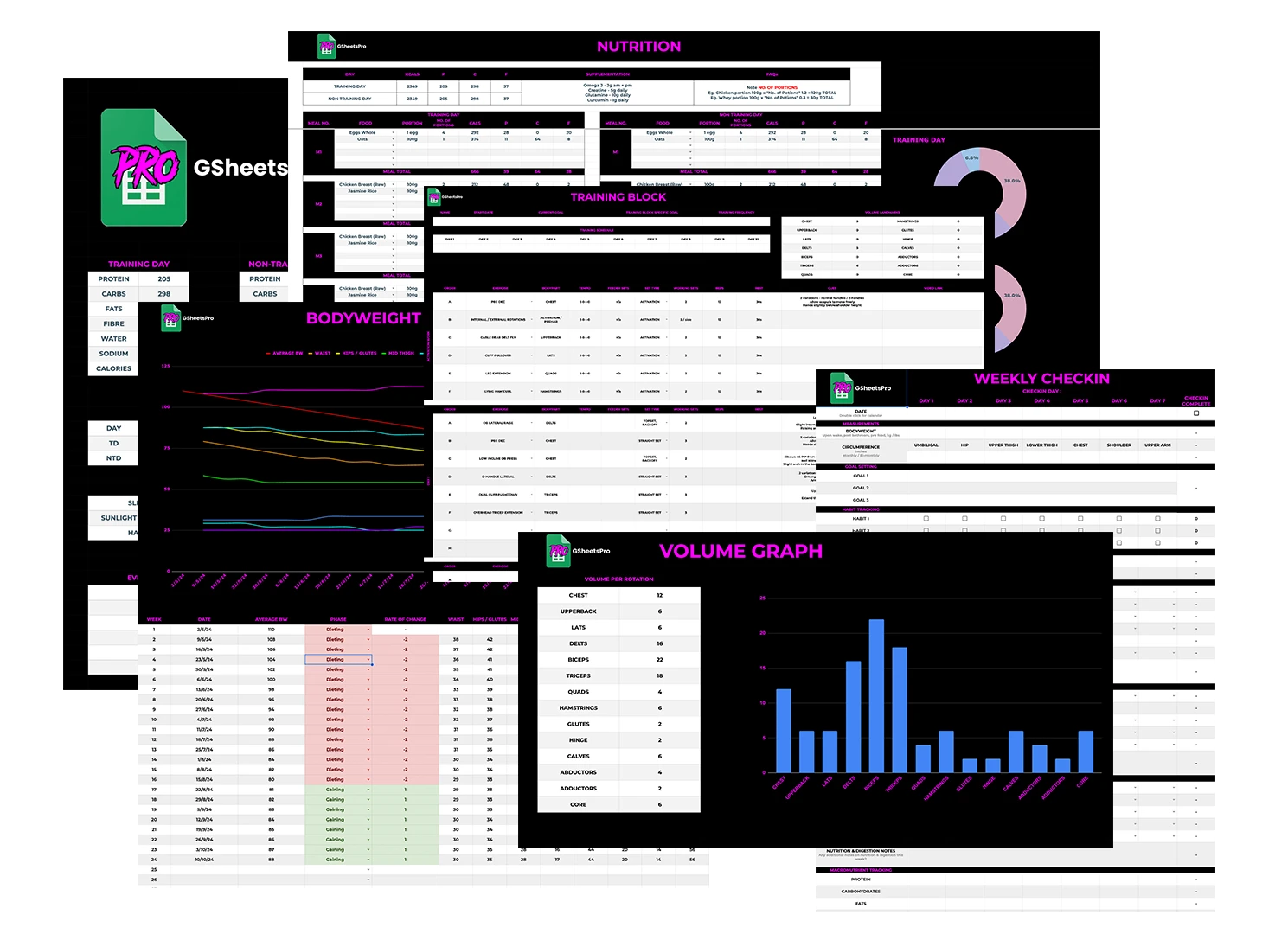
GSheetsPro uses this approach. It includes beginner and advanced check-in sheets and a weekly progress tracker inside the client files.
Formulas for Reviewing Check-Ins
Add these calculated columns to the right of the client's answers. The examples assume weekly rows starting at row 2, with average weight in column C.
Week-on-week weight change
=IF(C3="","",C3-C2)
Four-week rolling average of bodyweight (in row 5 and below)
=AVERAGE(C2:C5)
Drag it down so each row averages the latest four weeks. Compare rolling averages rather than single weeks to judge the trend.
Training adherence as a percentage (sessions done in E, sessions planned in a fixed cell such as $P$1)
=IFERROR(E2/$P$1,"")
Format the column as a percentage.
Nutrition adherence (calorie days in F)
=F2/7
Red flag for poor recovery (sleep in I, energy in J)
=IF(OR(I2<5,J2<5),"Review","")
Two weeks in a row of low sleep
=IF(AND(I2<5,I3<5),"Sleep trend","")
Add conditional formatting so any cell that says "Review" turns red. You can then scan a column rather than read every answer.
Build a Coach Review Dashboard
If you use the Google Form option, add a separate tab that shows only the latest check-in for each client. With client names in column B of the responses sheet, this formula returns every response from the last 7 days:
=FILTER(Responses!A2:Q,Responses!A2:A>=TODAY()-7)
To list clients who have not checked in this week, keep a roster of active clients in Roster!A2:A and use:
=FILTER(Roster!A2:A,Roster!A2:A<>"",COUNTIFS(Responses!B2:B,Roster!A2:A,Responses!A2:A,">="&TODAY()-7)=0)
This gives you a chase list in one view. The client tracking spreadsheet guide shows how to build the roster.
A 10-Minute Check-In Review Routine
Review check-ins in one block on the same day each week. For each client:
- Read the flags first. Any "Review" cell tells you where to focus.
- Check the trend, not the week. Compare the 4-week average weight and adherence with the previous block.
- Read the comments. The win and challenge answers often explain the numbers.
- Make one decision. Keep the plan, adjust calories, change training volume, or address a barrier.
- Reply with the decision and one action. A short video or written note works. Keep it specific.
If the numbers are on target and the client is happy, a short reply is fine. Save longer replies for clients who need a change.
For automations such as reminders and renewal flags, see client check-in sheets: 10 automations.
Common Check-In Template Mistakes
- Too many questions. Completion drops when the form takes too long. Remove anything you do not act on.
- Changing questions often. Trends only work when questions stay the same. Change the form at the start of a new block.
- No deadline. Set a day and time, for example Sunday by 6pm, and review on Monday.
- Sharing a sheet with other clients' data. Keep form responses coach-only.
- No reply. A check-in without feedback feels like admin to the client. Always reply.
Frequently Asked Questions
What should an online coaching check-in include?
Bodyweight (as a weekly average), a measurement, training and nutrition adherence, sleep, energy, stress and short comments on wins and challenges. Keep it to 10–15 questions.
Should I use Google Forms or a Google Sheet for check-ins?
Use a Google Form if you want one link for all clients and a coach-only response sheet. Use a tab in each client's sheet if you want the history next to their plan. Both work.
How often should online clients check in?
Weekly is the most common rhythm. It gives enough data to see a trend without making the check-in feel like a chore. Some coaches add a short mid-week message for clients who need more support.
Can I send automatic check-in reminders from Google Sheets?
Not by default. You can use Google Apps Script or a third-party tool to send reminder emails. Many coaches send a short reminder message manually on the same day each week.
Is there a ready-made check-in template?
GSheetsPro includes beginner and advanced check-in sheets and a weekly progress tracker as part of a £199 one-time system. You can also build your own from the fields and formulas above.
Get the Templates Pre-Built
If you would rather not build and test the formulas yourself, see the GSheetsPro system and pricing. It includes check-in sheets, training plans, meal plans and a client dashboard. You can also browse all five core templates and the meal plan template guide.